
프롬프트 가이드
텍스트 렌더링, 사진 사실주의, 이미지 편집 등 GPT Image 2에서 최상의 결과를 얻기 위한 팁, 기법 및 모범 사례.
핵심 원칙
GPT Image 2는 상세한 지시사항을 면밀하게 따릅니다. 프롬프트가 구체적이고 구조화될수록 결과물이 더 좋아집니다. 프롬프트를 창의적 브리프로 생각하세요: 무엇을 원하는지, 어떻게 보여야 하는지, 무엇이 변경되지 않아야 하는지를 설명하세요.
1. 구체적으로 작성하기
모호한 프롬프트는 일반적인 결과를 만들어냅니다. 피사체, 환경, 조명, 분위기, 구도를 명확하게 묘사하세요.
| 대신 | 이렇게 작성하세요 |
|---|---|
| "커피 한 잔" | "대리석 조리대 위에 놓인 무광 블랙 세라믹 커피 컵, 약간 위에서 촬영, 왼쪽에서 들어오는 부드러운 아침 빛, 얕은 피사계 심도" |
| "더 좋게 만들어" | "오른쪽 상단에서 따뜻한 골든아워 조명 추가, 피사체와 구도는 그대로 유지" |
| "밤의 도시" | "밤의 도쿄 항공 뷰, 젖은 거리에 반사되는 네온사인, 시네마틱한 청록색과 주황색 색보정, 사진 사실적" |
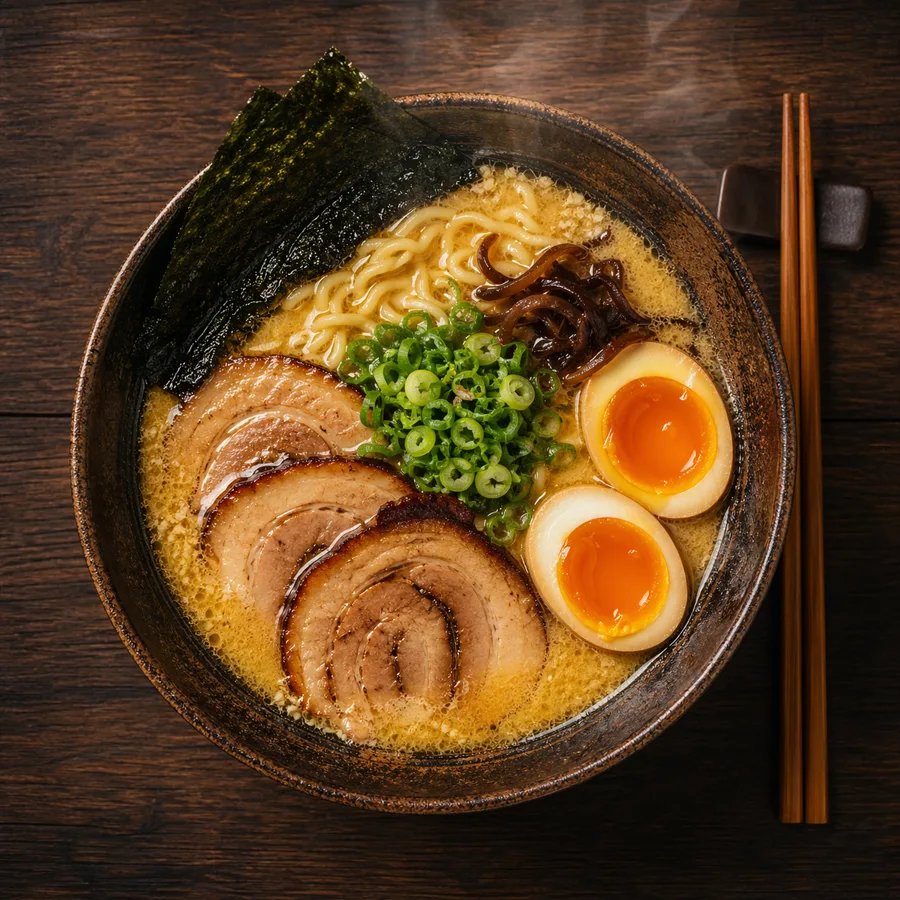
2. 사실주의를 위한 사진 언어 사용
사진 사실적 결과를 원할 때, 사진작가처럼 이미지를 묘사하세요:
- 렌즈 유형:
"50mm 렌즈","광각 24mm","망원 200mm" - 조리개 / 피사계 심도:
"얕은 피사계 심도","f/1.8 보케 배경" - 조명:
"부드러운 확산 자연광","스튜디오 3점 조명","골든아워 역광" - 필름 스타일:
"35mm 필름 그레인","Kodak Portra 400","흑백 다큐멘터리" - 프레이밍:
"클로즈업 인물 사진","넓은 설정 샷","조감도"
예시:
A photorealistic candid portrait of a young woman at a Paris café, 35mm film,
natural window light, slight grain, shallow depth of field, Kodak Portra 400 aesthetic
3. 텍스트 정확하게 렌더링하기
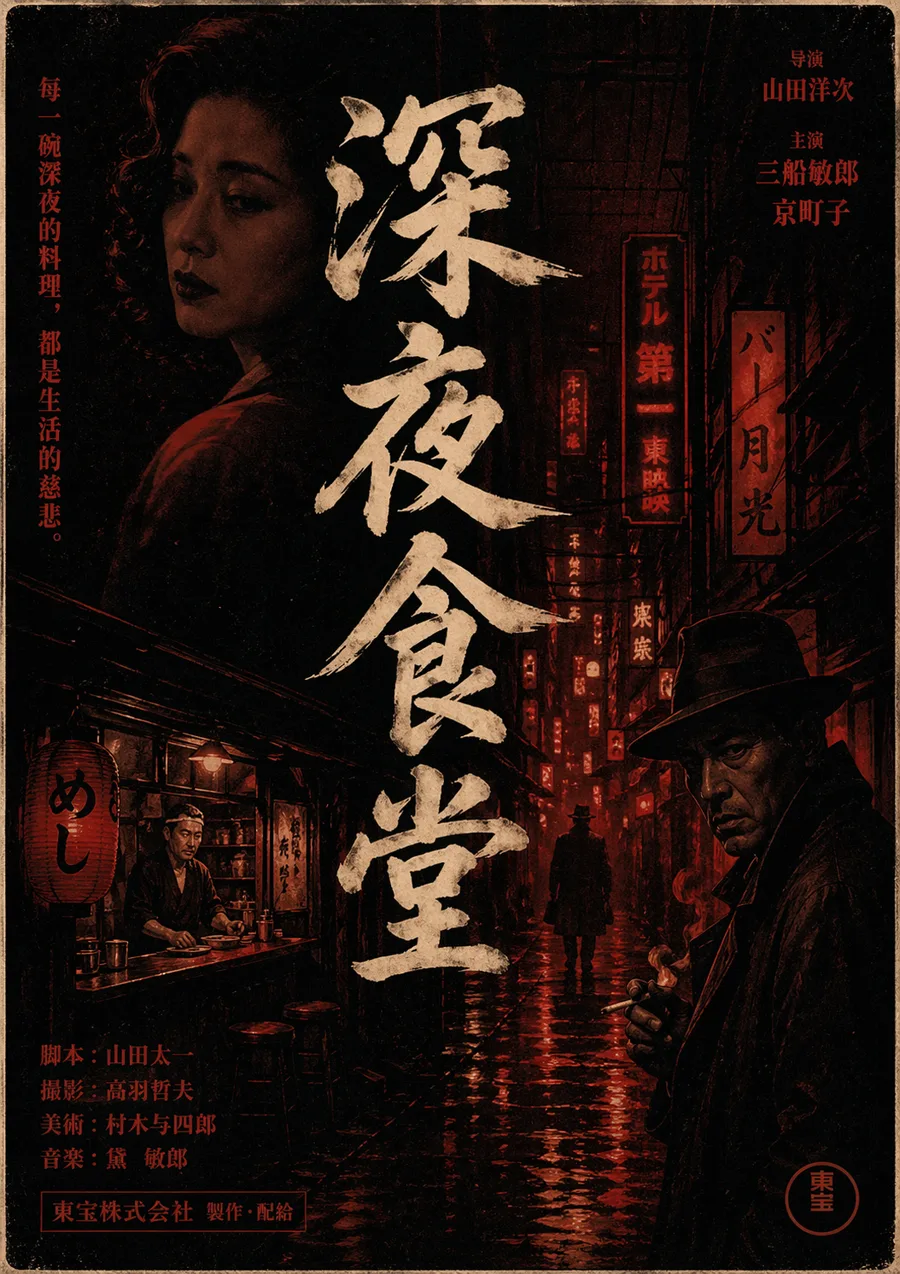
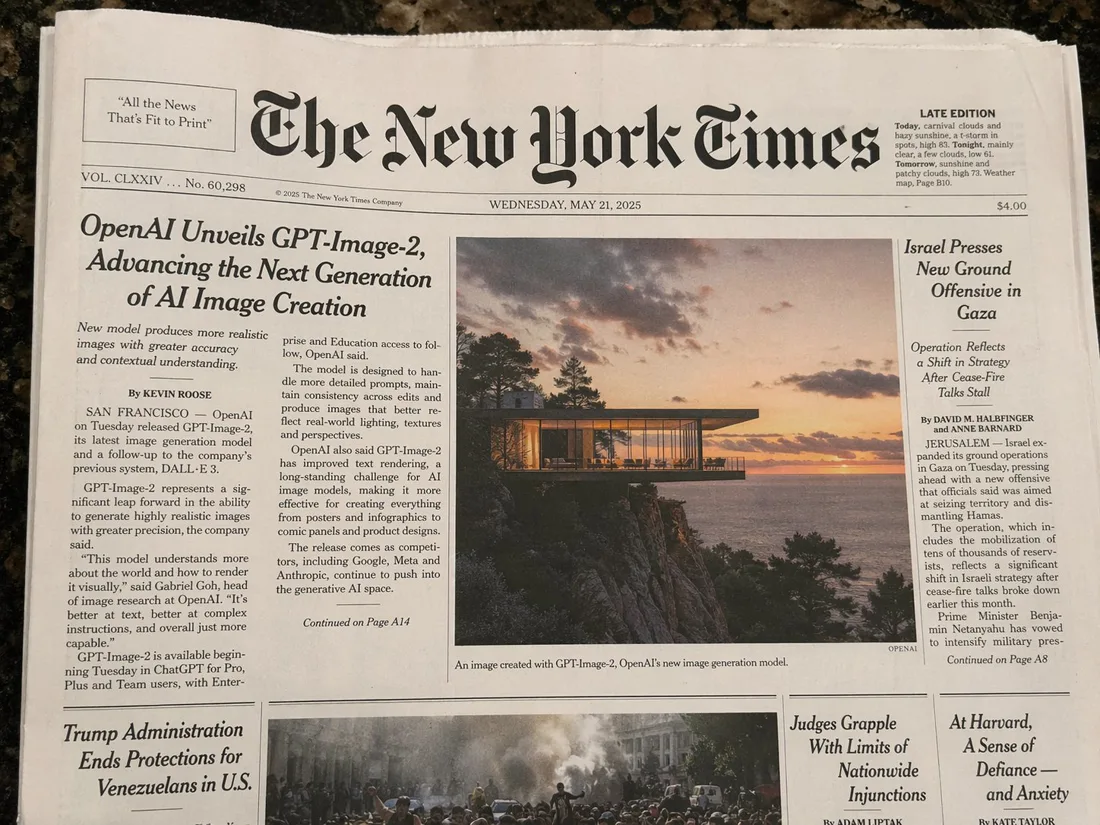
GPT Image 2는 텍스트 렌더링에서 뛰어납니다. 이미지에서 깔끔하고 읽기 쉬운 텍스트를 얻으려면:
- 정확한 텍스트를 프롬프트 내 따옴표로 묶기
- 타이포그래피 설명: 폰트 두께, 스타일, 크기, 색상
- 배치 지정:
"중앙 정렬","왼쪽 상단 모서리","이미지 위 굵은 헤드라인"
예시:
A minimalist poster with the headline "Design Trends 2026" in bold sans-serif,
centered, white text on a deep navy background, small subtitle "A Year in Review" below
인포그래픽의 경우:
A clean data infographic titled "Global AI Adoption 2026" with four labeled sections,
bar charts, percentage callouts, and a footer reading "Source: OpenAI Research"
4. 변경하지 말아야 할 부분 고정하기
이미지를 편집할 때, 동일하게 유지되어야 하는 부분을 모델에게 명시적으로 알려주세요. 이것이 없으면 모델이 전체 장면을 재해석할 수 있습니다.
템플릿:
[Describe the change you want]. Keep the [subject's face / product / background /
lighting / composition] identical. Only change [specific element].
예시:
Replace the red jacket with a navy blue wool coat. Keep the subject's face,
hair, pose, and background completely unchanged.
5. 스타일 전환
하나의 이미지 시각적 스타일을 새로운 피사체에 적용하려면, 다중 이미지 입력을 사용하고 각 이미지를 번호로 참조하세요:
Apply the lighting style, color palette, and grain texture from image 1
to the subject in image 2. Keep the subject's identity and pose from image 2.
단일 프롬프트 스타일 제어:
A portrait photograph in the style of Vivian Maier — black and white,
35mm street photography, candid framing, high contrast
6. 캐릭터 일관성
동일한 캐릭터가 여러 장면에 등장해야 하는 멀티 패널 일러스트레이션, 만화, 또는 스토리보드의 경우, 각 프롬프트 시작 부분에 캐릭터 설명을 앵커로 배치하세요:
[Character description: teenage girl with short red hair, green eyes,
wearing a yellow raincoat] standing at a bus stop in the rain,
illustrated in a clean graphic novel style
각 생성에서 캐릭터 앵커를 반복하면 모든 출력에서 정체성이 일관되게 유지됩니다.
7. 제품 사진
GPT Image 2는 정확한 라벨 텍스트, 로고, 브랜드 색상이 있는 제품 사진에 강합니다:
A premium e-commerce product photo of a skincare serum bottle labeled
"LUMINA Vitamin C Serum 30ml", white minimal background, soft studio light
from the upper left, sharp label text, clean shadows
복잡한 라벨이 있는 패키징의 경우:
A coffee bag product shot labeled "Summit Roast — Single Origin Ethiopia",
with a mountain line-art illustration on the front, kraft paper texture,
matte finish, on a wooden tabletop, natural daylight
8. 인포그래픽과 데이터 시각화
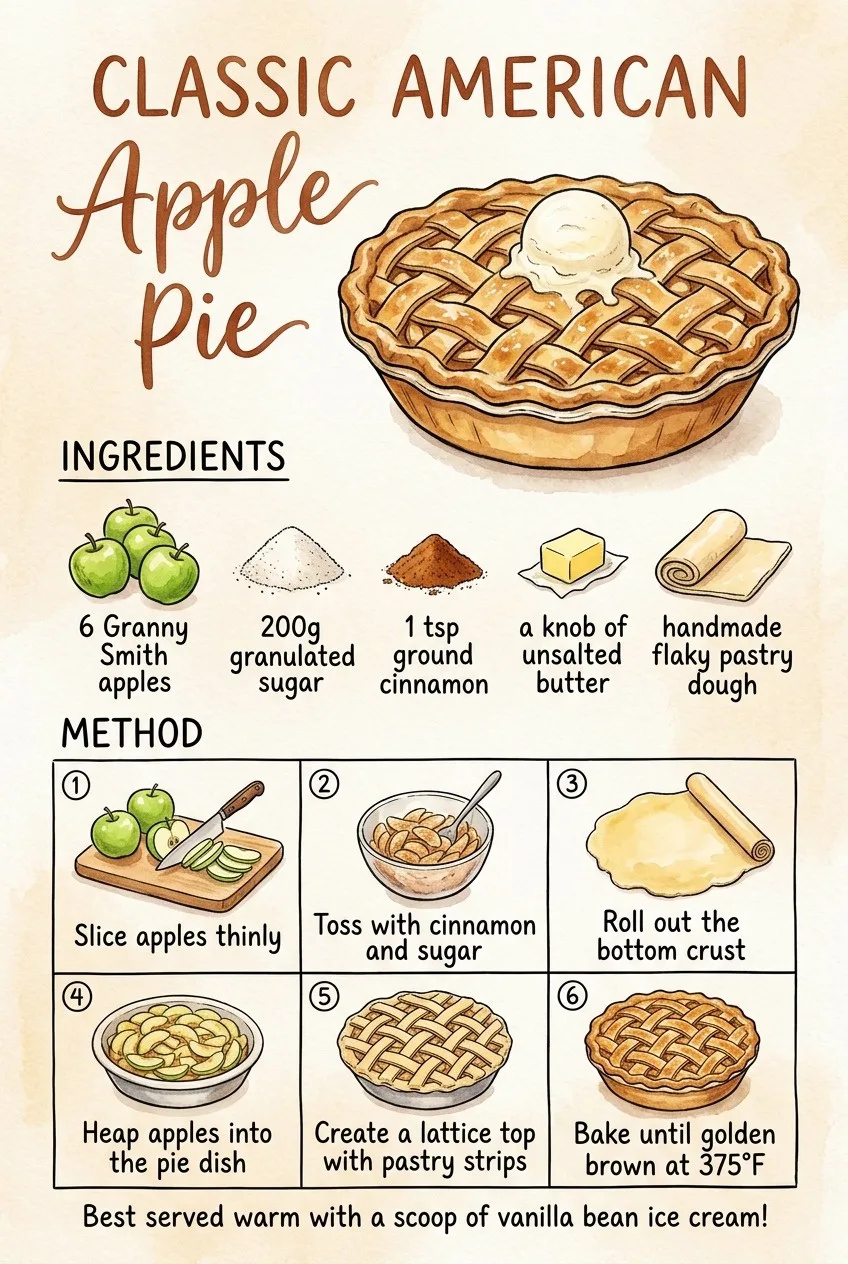
정보가 밀집된 레이아웃의 경우, 디자인 브리프처럼 프롬프트를 구조화하세요:
A clean editorial infographic titled "How Neural Networks Learn" with:
- A top header section with the title in bold
- Three labeled diagram stages: Input Layer, Hidden Layers, Output Layer
- Arrows connecting each stage
- A caption at the bottom: "Simplified illustration, not to scale"
Style: flat design, limited color palette (blue, white, dark gray)
9. UI 및 인터페이스 목업
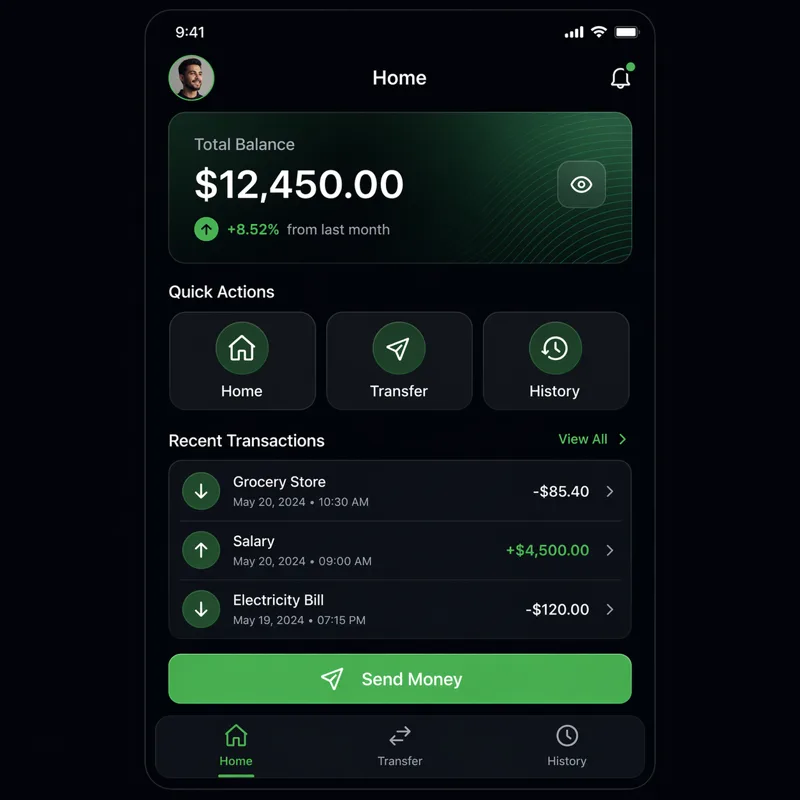
A pixel-accurate mockup of a mobile banking app home screen showing:
- User greeting "Good morning, Alex"
- Account balance: $4,820.00
- Three quick-action buttons: Send, Request, Pay
- Recent transaction list with 4 items
- Bottom navigation bar with Home, Cards, History, Settings icons
Clean iOS design, light mode, San Francisco font
10. 다국어 텍스트
GPT Image 2는 비라틴 문자를 잘 처리합니다. 언어와 문자 체계를 명시적으로 지정하세요:
A store sign in Japanese reading "新鮮な野菜" (Fresh Vegetables) in hand-painted
brushstroke calligraphy style, mounted on a wooden board outside a market stall
A bilingual business card with "Sarah Chen / 陈明华" as the name,
"Creative Director" in English and "创意总监" in Chinese below,
minimal design, black on cream paper프롬프트 템플릿
사진 사실적 인물 사진
Photorealistic portrait of [subject description], [lens] lens, [lighting type],
[color grade], [film or digital aesthetic], [framing]
제품 사진
Premium product photography of [product name] with [label/text],
[background surface], [lighting direction], sharp focus on label text,
[shadow style]
인포그래픽
[Style] infographic titled "[title]" with [number] sections covering [topics],
labeled diagrams, [chart types], caption: "[footer text]"
이미지 편집
[Edit instruction]. Keep the [preserve elements] completely unchanged.
Only change [target element]. Preserve the original lighting and composition.
일러스트 장면
[Character description] [action] in [setting], illustrated in [art style],
[color palette], [mood/atmosphere]
피해야 할 흔한 실수
- 편집 과잉 제약: "모든 것을 바꿔"라고 말하는 것은 이미지 편집의 목적에 반합니다. 한 번에 하나의 변경만 하세요.
- 텍스트에 따옴표 없음: 이미지에서 렌더링하려는 텍스트는 프롬프트에서
"따옴표"안에 넣어야 합니다. - 일반적인 품질 용어:
"고품질"및"아름다운"은 아무 의미가 없습니다. 특정 출력에서 고품질이 어떻게 보이는지 설명하세요. - 스타일 앵커 잊기: 다중 출력 시퀀스의 경우, 항상 각 프롬프트에서 스타일과 캐릭터 설명을 반복하세요.
관련 리소스
- 사용 사례 — 업계별 프롬프트 패턴
- 쇼케이스 갤러리 — 실제 출력에서 영감 얻기
- API 레퍼런스 — 이 프롬프트를 API 로 사용
- GPT Image 2 사용법 — 초보자를 위한 단계별 가이드
- 블로그 — 튜토리얼 및 프롬프트 엔지니어링 글