The #1 Mistake People Make with GPT Image 2
Most people type a vague prompt, get a mediocre image, and assume the model is the problem. It isn't. This guide shows the exact 5-section structure that fixes 90% of bad GPT Image 2 results — and the two-column edit rule that makes every revision land right the first time.
Most AI image generators punish vague prompts with generic output. GPT Image 2 is different — it rewards structure. Creators who know the five-section prompt format generate professional images on the first attempt. Those who don't spend hours regenerating and never quite get there.
This guide gives you the structure they're using.
What Is GPT Image 2?
GPT Image 2 is OpenAI's most advanced image generation model, launched in April 2026 as gpt-image-2. GPT Image 2 accepts text and image inputs and outputs high-fidelity images in flexible sizes. Compared to earlier models, GPT Image 2 delivers significantly better text rendering, more stable edits, and support for up to 16 reference images per request.
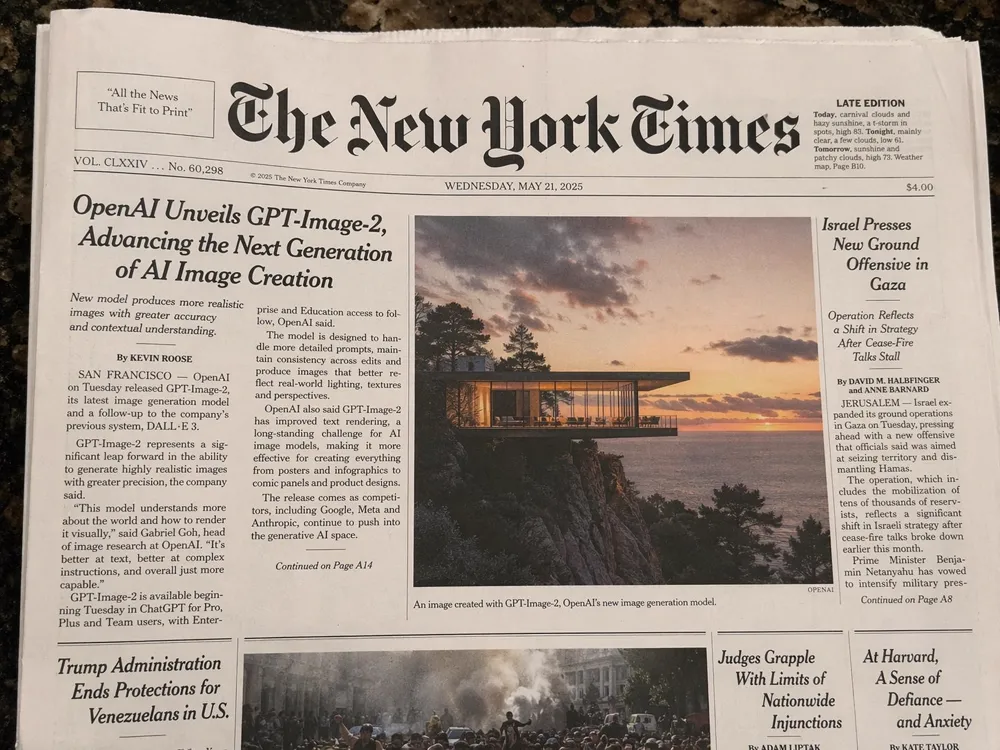
ChatGPT Image 2 refers to the same GPT Image 2 model accessed through the ChatGPT interface. On gpt-image-2.art, GPT Image 2 is available with direct control over quality, size, and format — no ChatGPT subscription needed.
How to Use GPT Image 2: Quick Start in 4 Steps
Getting your first GPT Image 2 result takes less than two minutes. Here is exactly how to use GPT Image 2 from zero.
Step 1 — Open GPT Image 2
Go to gpt-image-2.art. GPT Image 2 loads directly in your browser — no installation, no waiting. Free users can generate GPT Image 2 images daily without a credit card.
✓ Done. Your GPT Image 2 session is live.
Step 2 — Write a Structured Prompt
GPT Image 2 reads structure. The most reliable prompt format for GPT Image 2 is the five-section template:
Scene:
[where this happens, time of day, background, environment]

Subject:
[who or what is the main focus]

Important details:
[materials, lighting, camera angle, lens feel, mood]

Use case:
[editorial photo / product mockup / poster / UI screen]

Constraints:
[no watermark / no logos / no extra text / preserve face]
✓ Done. You've just built the prompt structure that 90% of users skip.
Step 3 — Choose GPT Image 2 Settings
Before generating with GPT Image 2, select:
- Quality: Standard or High — GPT Image 2 High produces sharper detail
- Size: 1024×1024 (square), 1536×1024 (landscape), or 1024×1536 (portrait)
- Format: PNG for transparency support, JPEG for smaller file size, WebP for web delivery
✓ Done. Three settings, 10 seconds.
Step 4 — Generate, Review, and Download
Click Generate in GPT Image 2. In 10–30 seconds, GPT Image 2 returns your image. If the GPT Image 2 result needs refinement, keep the previous output as a reference and send a small, focused change — one revision per turn performs better than a complete rewrite.
That's it. You've just run a professional-grade GPT Image 2 generation.
How to Use GPT Image 2 for Text-to-Image Generation
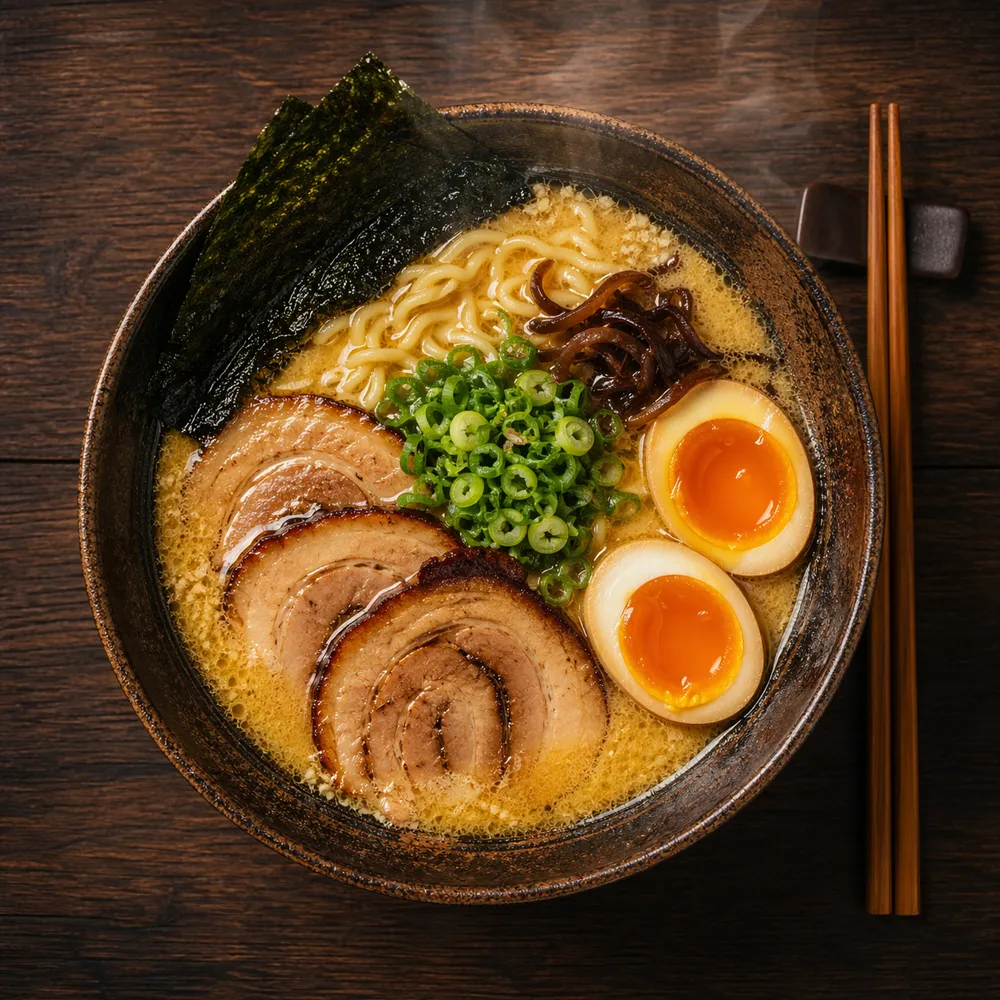
Text-to-image is the core mode of GPT Image 2. When you know how to use GPT Image 2 prompts well, you can create photorealistic editorial photos, product scenes, UI mockups, concept art, and typography-heavy posters on demand.
The Rule: Visual Facts Over Vague Praise
GPT Image 2 cannot render "stunning" or "epic." Give GPT Image 2 concrete visual details instead.
| Prompt Type | What GPT Image 2 Does | |
|---|---|---|
| ❌ | A stunning ultra-detailed cinematic masterpiece of a woman in a museum, beautiful, photoreal, 8K. | Produces generic, over-processed output |
| ✅ | Scene: A quiet museum gallery in soft afternoon light. Subject: A woman in her 30s in front of a large oil painting. Details: Beige knit sweater, marble floor reflections, shallow depth of field. Use case: Editorial photo. Constraints: No watermark. | Immediately usable, first-pass result |
The second version gives GPT Image 2 something measurable in every slot. GPT Image 2 reads all five sections and produces a result that is immediately usable — not a starting point for ten regenerations.
GPT Image 2 Text-to-Image Example — Product Photography
Scene: A museum archive setup under flat neutral light.
Subject: Two wireless earbuds carved from worn gray stone on conservation foam.
Important details: Accession card reads "ACC. 2126.04 - EARLY 21C PERSONAL
  ACOUSTIC IMPLEMENT", flat even lighting, neutral beige backdrop, shallow depth of field.
Use case: Museum archive photograph.
Constraints: No watermark, no brand logos, stone material reads clearly.
GPT Image 2 produces this in one pass because the aesthetic commits all the way — museum framing, accession card, conservation foam, flat lighting. Every detail in the GPT Image 2 prompt reinforces the concept.
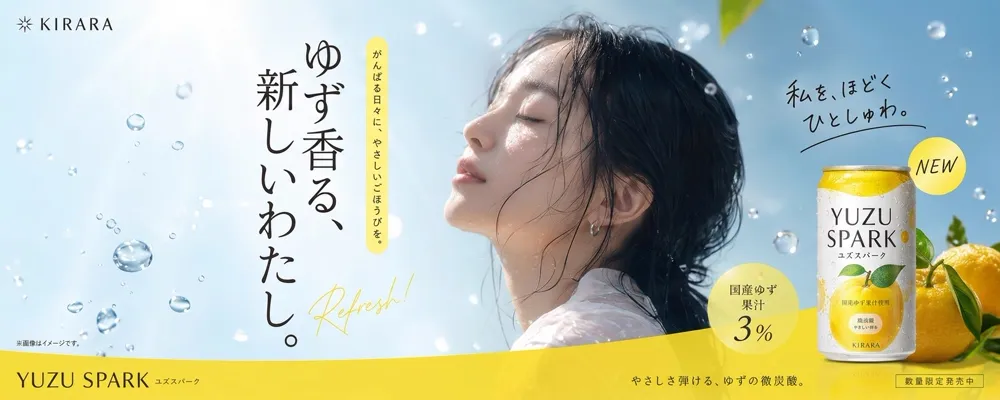
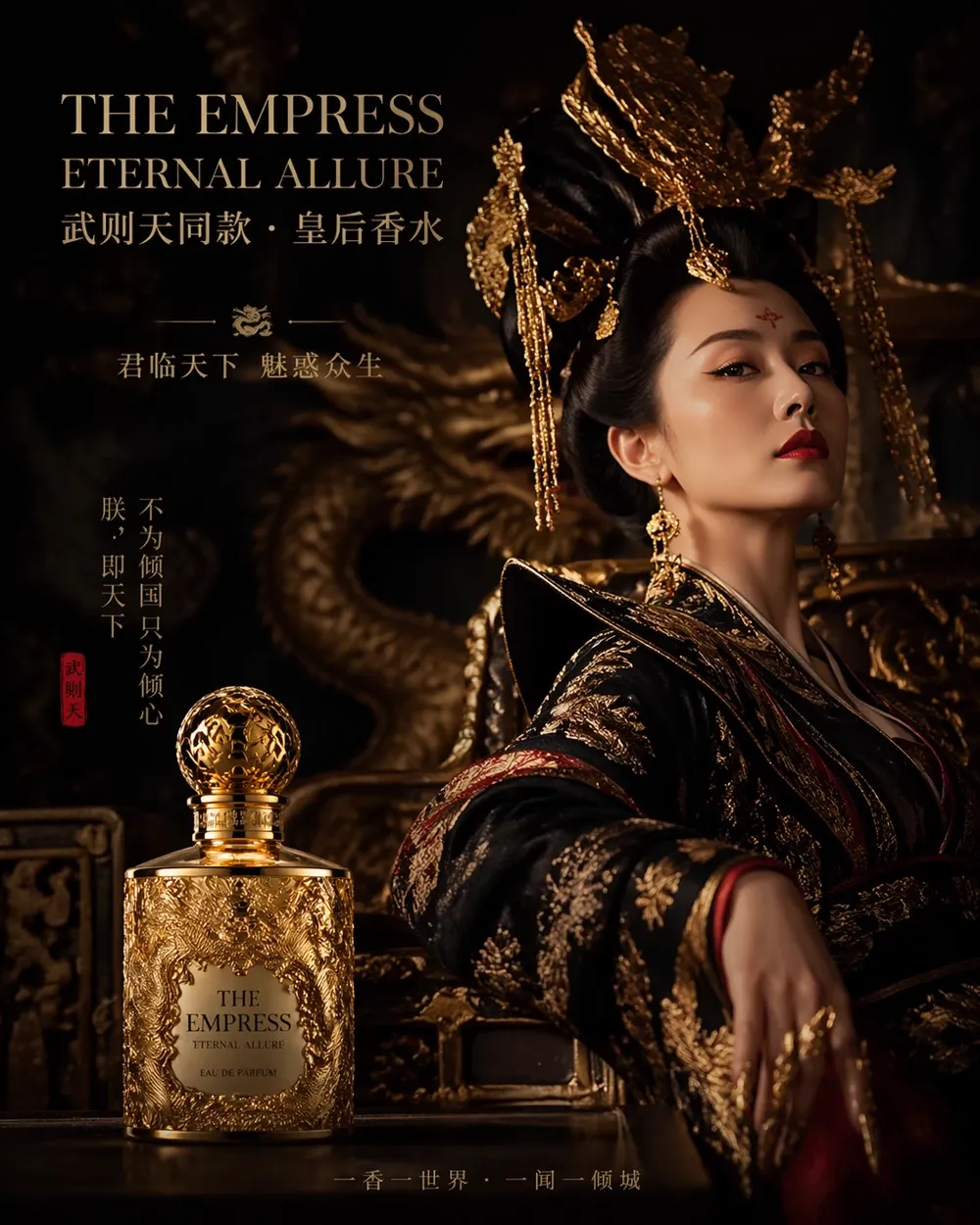
GPT Image 2 delivers product advertising visuals — complete with readable branding, natural model photography, and styled copy — from a single structured prompt. Marketing teams use GPT Image 2 to generate multiple variations like this in minutes.
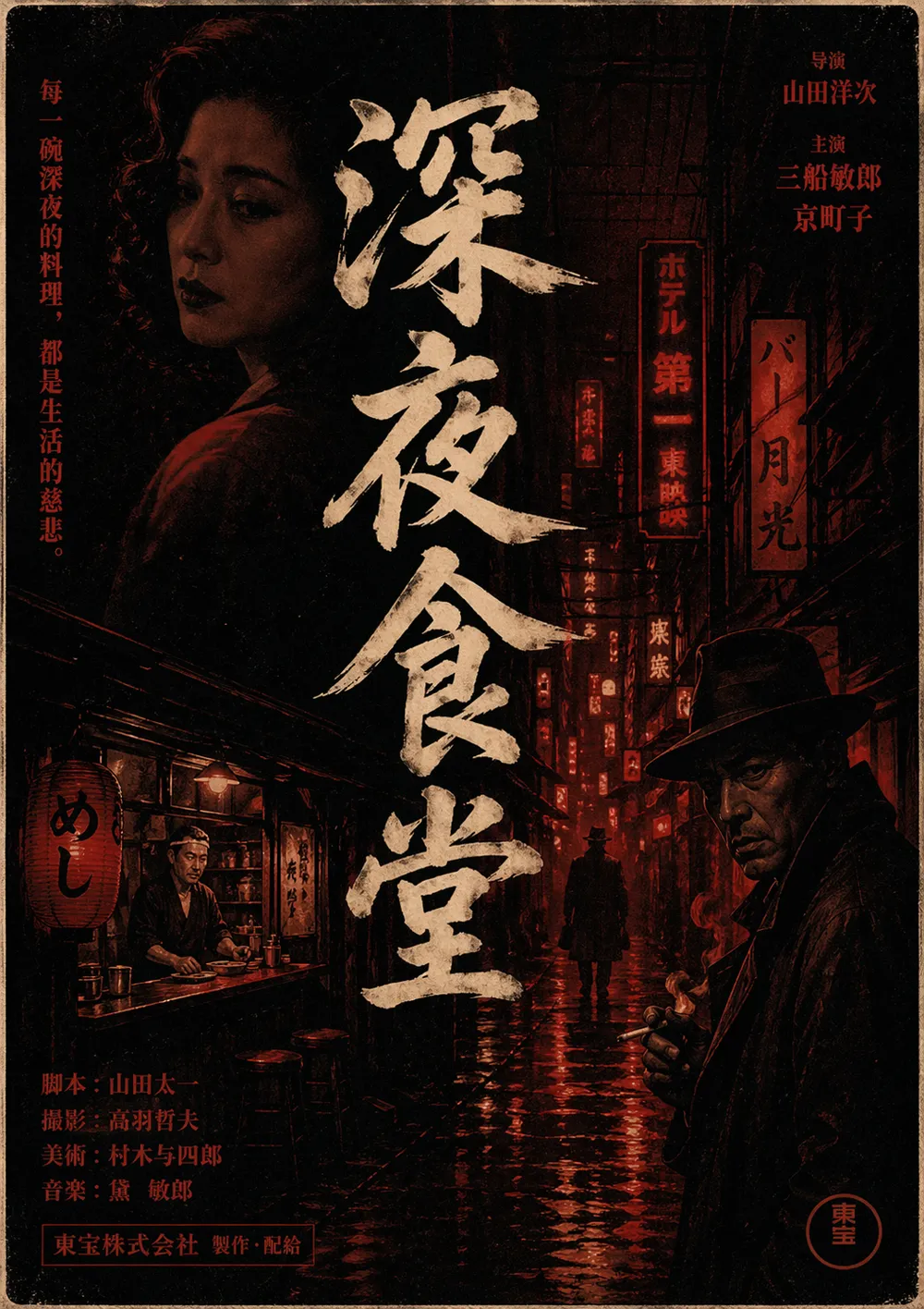
Typography-heavy compositions like film posters are one of the strongest demonstrations of how to use GPT Image 2 text rendering. GPT Image 2 handles mixed-script layouts — including characters, credits, and layout hierarchy — when the prompt specifies typography constraints explicitly.
How to Use GPT Image 2 for Image Editing
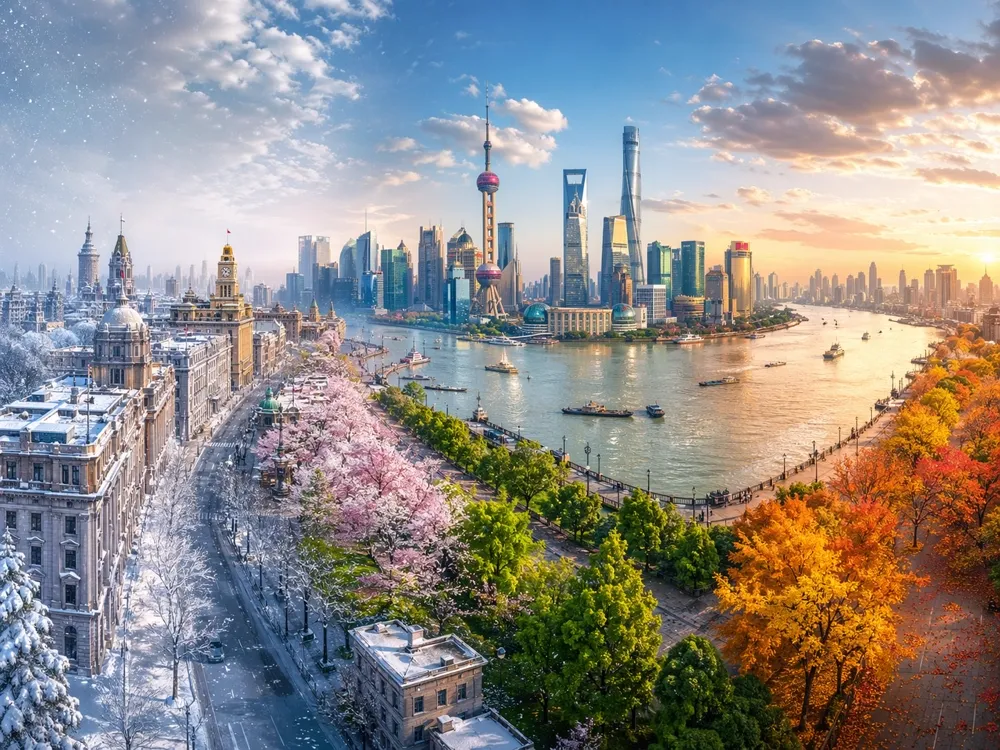
GPT Image 2 image editing is where the model truly separates itself. GPT Image 2 accepts an existing photo and makes targeted changes while leaving the rest of the image untouched.
The Two-Column Edit Rule for GPT Image 2
Every GPT Image 2 edit should use two columns: what changes and what stays locked.
Change:
Replace the parked car with a vintage bicycle.

Preserve:
The house, fence, driveway concrete, landscaping,
lighting direction, and time of day exactly.

Constraints:
Match the bicycle scale and shadow pattern to the existing scene.
No watermark.
GPT Image 2 uses the preserve list to hold everything stable while making only the requested change. Without it, GPT Image 2 will drift — especially on iterative edits.
How to Use GPT Image 2 for Multi-Image Composition
GPT Image 2 accepts up to 16 reference images per edit. Label each input image by role so GPT Image 2 knows which is content and which is reference:
Image 1: base scene to preserve.
Image 2: jacket reference.
Image 3: boots reference.

Instruction:
Dress the person from Image 1 using the jacket from Image 2
and the boots from Image 3.
Preserve the face, body shape, pose, background, camera angle,
framing, and lighting exactly from Image 1.
Fit the garments naturally with realistic folds and contact shadows.
No jewelry, no text, no logos.
Labeling each input by role prevents GPT Image 2 from guessing. This is the correct pattern for virtual try-on, compositing, and style transfer with reference images.
How to Use GPT Image 2 for Style Transfer
Style transfer in GPT Image 2 works best when you name the visual parts rather than saying "same style."
Instead of telling GPT Image 2 "use the same style as the reference image," describe the specific visual language:
Use the same visual language as the input image:
chunky pixel forms, limited arcade palette, bright glow accents,
clean silhouette edges, playful 1980s poster energy.
Generate a new scene of a motorcycle chase through a neon desert at night.
White background. No watermark.
GPT Image 2 can also convert a pencil sketch into a photorealistic landscape. The key instruction to GPT Image 2 is whether the sketch layout is a suggestion or a strict contract:
Turn this drawing into a photorealistic landscape image.
Preserve the exact layout, horizon line, river path, mountain placement,
tree placement, and overall perspective.
Use realistic natural materials and sunrise lighting.
Do not add people, buildings, animals, or text.
How to Use ChatGPT Image 2 via the API
If you want to use ChatGPT Image 2 programmatically, GPT Image 2 is available through the OpenAI API. Here is how to use GPT Image 2 for text-to-image with the official JavaScript SDK:
import OpenAI from "openai";

const client = new OpenAI({ apiKey: process.env.OPENAI_API_KEY });

// GPT Image 2 text-to-image
const result = await client.images.generate({
  model: "gpt-image-2",
  prompt: "Scene: A narrow side street just after rain at blue hour. Subject: A florist locking up. Use case: Editorial photo. Constraints: No watermark.",
  size: "1024x1024",
  quality: "high",
  n: 1,
});

console.log(result.data[0].url);
For GPT Image 2 image editing via the API, use the images.edit endpoint and pass your source image as image. GPT Image 2 supports standard and high quality levels and returns either a URL or base64-encoded b64_json.
The GPT Image 2 API rate limits by tier: Tier 1 allows 5 images per minute, Tier 5 allows up to 250 images per minute. ChatGPT Image 2 in the ChatGPT interface shares the same underlying gpt-image-2 model and responds to the same structured prompt format.
GPT Image 2 Use Cases: Where Creators Are Seeing the Fastest Results
GPT Image 2 suits a wide range of workflows. Here are the six use cases where creators are currently seeing the fastest results — and why GPT Image 2 handles each one better than a general-purpose prompt.
| Use Case | How GPT Image 2 Helps |
|---|---|
| Photorealistic editorial | Generate documentary-style photos with believable lighting, texture, and camera behavior |
| Product photography | Place products in clean cutout or lifestyle scenes with preserved label fidelity |
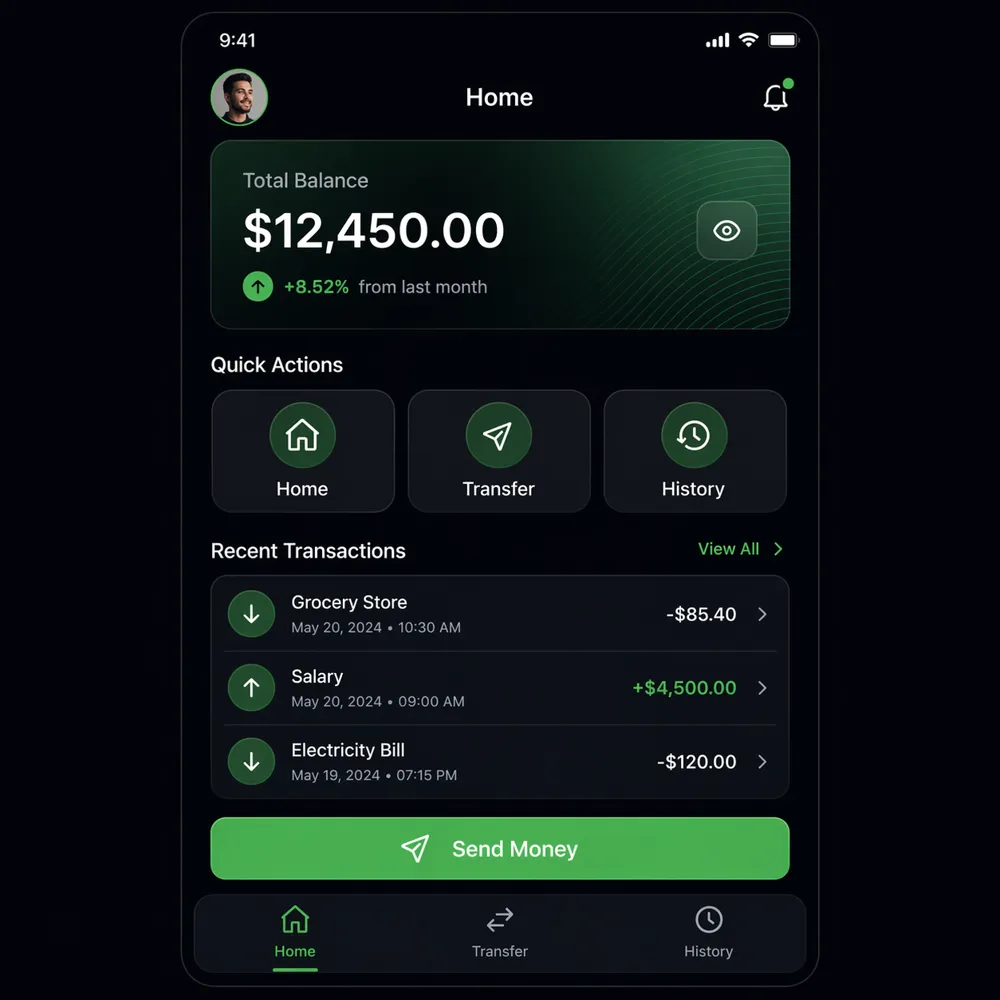
| UI and app mockups | Create readable app screenshots with exact copy, hierarchy, and spacing |
| Text in image | Render billboards, signage, menus, and posters with legible, styled typography |
| Character consistency | Maintain face, wardrobe, and palette across a series of GPT Image 2 illustrations |
| Drawing to photo | Convert sketches or wireframes into photorealistic scenes while preserving the layout |
GPT Image 2 for Marketing and Advertising
Marketing teams use GPT Image 2 to produce multiple ad creative variations for A/B testing in minutes instead of days. A GPT Image 2 billboard prompt with exact headline copy, product placement, and typography constraints delivers print-ready results reliably.
GPT Image 2 for Content Creation
Social media creators use GPT Image 2 to generate unique visuals without expensive design tools. GPT Image 2 handles portrait, landscape, and square crops natively, making it ideal for multi-platform content production.
GPT Image 2 for Education
Educators use GPT Image 2 to produce visual learning materials — diagrams, illustrated explanations, historical scene reconstructions — that students engage with better than stock photography.
6 GPT Image 2 Prompting Rules That Actually Work
After running hundreds of GPT Image 2 generations, these six rules consistently improve GPT Image 2 output quality:
-
One revision per turn in GPT Image 2 — Small focused edits produce better results than one giant rewrite. Send GPT Image 2 a single change, confirm it, then move to the next.
-
Treat text as typography in GPT Image 2 — Wrap exact words in quotes or ALL CAPS. Specify font style, color, size, and placement. Tell GPT Image 2 "no extra words" and "no duplicate text."
-
Repeat the preserve list every GPT Image 2 iteration — Drift accumulates. Listing what must stay the same on every GPT Image 2 edit turn keeps the result in scope.
-
Use physical descriptions, not mood language — Tell GPT Image 2 "chipped paint," "brushed aluminum," "soft bounce light" rather than "industrial aesthetic" or "premium feel."
-
Name the real thing — If the image must show a boarding pass, tell GPT Image 2 "boarding pass." Mood language buries the actual brief.
-
Separate change from preserve in every GPT Image 2 edit — Use "change only X" and "keep everything else the same" as a standard sentence pair in every GPT Image 2 edit prompt.
Frequently Asked Questions About How to Use GPT Image 2
How to use GPT Image 2 for free? Visit gpt-image-2.art and start generating GPT Image 2 images without a credit card. The free tier includes daily GPT Image 2 image generation at standard quality.
How to use GPT Image 2 vs how to use ChatGPT Image 2 — what is the difference?
ChatGPT Image 2 is the same gpt-image-2 model accessed through the ChatGPT interface. Using GPT Image 2 on gpt-image-2.art gives you direct control over size, quality, and format without a ChatGPT Plus subscription.
What prompt format works best for GPT Image 2? The Scene / Subject / Important details / Use case / Constraints template gives GPT Image 2 the clearest brief. Fill all five slots and GPT Image 2 produces consistent, immediately usable results.
Can GPT Image 2 edit existing photos? Yes. GPT Image 2 accepts image inputs and can replace objects, change clothing, remove backgrounds, relight scenes, and swap weather or season — all while preserving the rest of the photo.
How to use GPT Image 2 with multiple reference images?
Pass up to 16 images to the GPT Image 2 edit endpoint using image_urls. Label each image by role in your instruction prompt so GPT Image 2 knows which is the base content and which are style or garment references.
Does GPT Image 2 render readable text in images? Yes. GPT Image 2 handles readable text in images significantly better than previous OpenAI models. Wrap exact copy in quotes, specify font style and placement, and add "no extra words, no duplicate text" to your constraints.
How long does GPT Image 2 take to generate an image? GPT Image 2 typically generates images in 10–30 seconds. High-quality or larger-size GPT Image 2 generations take closer to 30 seconds.
What if my first GPT Image 2 generation looks wrong? That's expected — even experienced GPT Image 2 users average 2–3 iterations before getting exactly what they want. The five-section template reduces that to 1–2. If your first result is off, don't rewrite everything. Find the one section that missed, fix only that, and regenerate.
Every Image You Don't Make Today Is Gone Tomorrow
Here's what actually happens to creators who keep putting off GPT Image 2: they watch their competitors ship social content, product mockups, and campaign visuals faster than they can open Figma — while still waiting to "learn it properly."
There's nothing left to learn. You have the template. You have the rules. The only difference between you and someone already generating professional GPT Image 2 images is one click.
Try GPT Image 2 Free — No Account Required →
Generates in 10–30 seconds. Free tier. No credit card.